Get ready for the new year! eRx Script Exchange has advised that there will be a significant number of NASH certificates expiring from now until January 2026.
To find out if your practice will be affected by this, follow the steps below to note your certificate thumbprint and check the expiry date.
- If your certificates are expiring before January 2026, follow the steps to update your providers’ certificates individually in the eRx Setup utility.
- If your certificate does not expire before January 2026, Best Practice Software is developing a new and simplified process to update eRx NASH certificates to be released as soon as possible. Best Practice Software will notify users as soon as this update becomes available.
You may have updated your NASH certificate for My Health Record (MHR) but have not gone through the process to update the NASH used for ePrescribing. Updating your NASH certificate for MHR will not update it for eRx ePrescribing.
If your certificate expires, your practice will not be able to send any electronic prescriptions to patients, and any paper-based prescriptions will not contain a barcode.
Note Certificate Thumbprint
Find the thumbprint of your eRx certificate and note it down through the eRx Setup utility.
- Click the Windows logo in the bottom left of the toolbar or click the Windows logo button on the keyboard.
- Click the Search icon (magnifying glass) in the top right to slide in the Search bar.
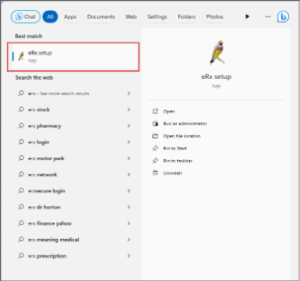
- Type ‘eRx Setup’ into the Search bar and select eRx Setup from the list. The eRx Setup utility will launch.
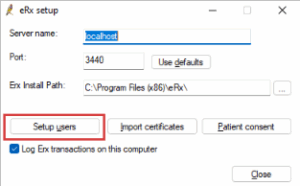
- From the eRx Setup utility, click Setup Users. The eRx Users screen will display.
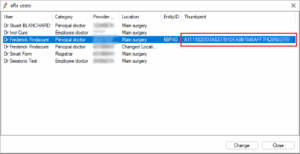
- Take note of the Thumbprint, this is used for the NASH certificate when ePrescribing. You may need to resize the columns in this screen to view the full thumbprint.
Check Certificate Expiry
To check your certificate expiry date:
- Click the Windows logo in the bottom left of the toolbar or click the Windows logo button on the keyboard.
- Click the Search icon (magnifying glass) in the top right to slide in the Search bar.
- Type ‘internet options’ into the Search bar and select Internet Options from the list. The Internet Properties screen will appear.

Your version of Windows may be different to the screenshot above. - In the Internet Properties screen, select the Content tab. Click Certificates. The Certificates screen will appear.
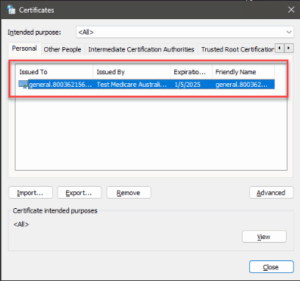
- The NASH certificate will have the name ‘general’ followed by the HPI-O number for the practice.
- You may have multiple certificates like this; check each certificate to locate the thumbprint. Double-click on a certificate or click View with a certificate highlighted, then select the Details tab. Scroll down to find the Thumbprint field.
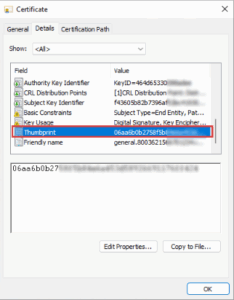
- Cross reference your thumbprint noted from the eRx Setup utility earlier to locate the correct certificate. When you’re confident you have the correct certificate, check the Valid to field for the certificate expiry date.
Update Your NASH Certificates
If your NASH Certificate is expiring for Prescribing and not MHR, then you will need to obtain a copy of the most recent NASH to update prescribers in eRx Setup. You will need to update the certificate for each prescriber individually.
- On the Bp Premier database server, browse to the folder C:\Program Files\Best Practice Software\BPS and double-click on the file eRx Setup.exe, or browse to Start > Best Practice Software > eRx setup.
- Log in using your Bp Premier username and password. The eRx Setup screen will appear.
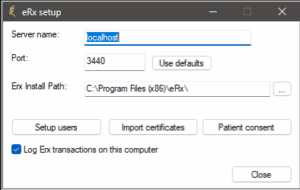
- Click on the Setup Users button to display the eRx users’ screen. This screen lists all providers set up in Bp Premier.
- Complete the following for each prescriber registered for eRx: i. Select the prescriber’s name in the list and click Change. A second eRx setup screen will appear.
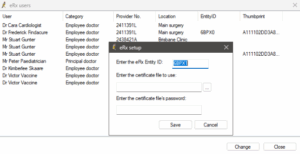
ii. Click on the … button next to Enter the certificate file to use field and navigate to the NASH certificate.
NOTE: If your practice has more than one NASH certificate, you must select only one of the NASH Certificates to import into eRx Setup for all providers.
iii. Select the file called FAC_Sign.p12 and click OK.
iv. In the Enter the certificate file’s password, enter the PIC password for the NASH certificate.
v. Click Save.
- After updating the prescriber’s certificates, verify that the Thumbprint displayed in the Thumbprint column is the same for all prescribers. eRx Script Exchange may cease to function if the Thumbprint does not match.
- Click the Close button to return to the eRx setup screen.
Once you have completed the above steps, eRx Script Exchange will need to update the details in their records. Please contact Bp Support on 1300 401 111 and provide the following:
- Access to eRx Setup and prescriber Entity IDs.
- Access to Internet Options for Certificate details to provide to eRx.
Newsletter Subscription
"*" indicates required fields

